

Vendor Stack
Sell in any currency
Record booth sales in event currency.
An exhibitor — a Participant, in Event Base — sells in the event's own currency, coins, tokens or vouchers, and the tablet records each item the visitor receives.
Pushed to your tablets by your device management. Nothing for staff to install.
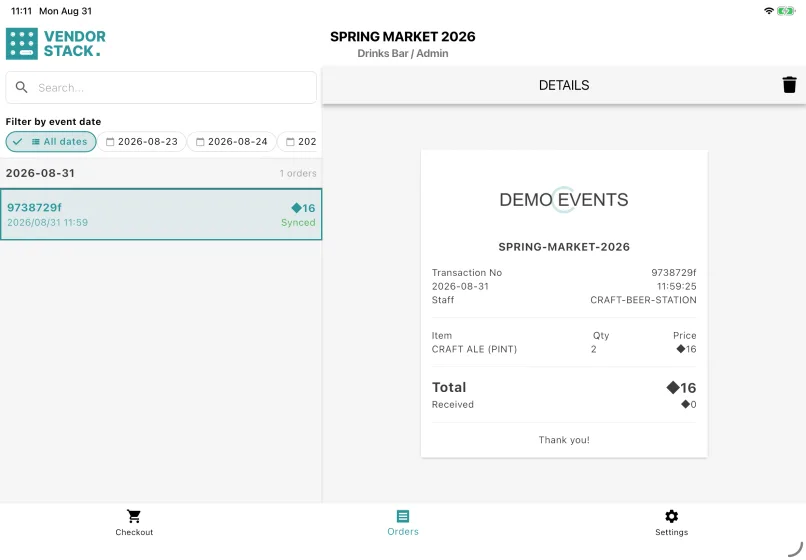
The app does not process money. The visitor bought their coins elsewhere, so the booth is not taking a payment: it is recording what the visitor received in exchange. That is why the app has no payment screen, no keypad, no change, no card terminal and no receipt printer.
Every sale is written to the device first and synced afterwards, so a booth can keep selling through a Wi-Fi outage — and every sale is recorded against both the booth and the exhibitor selling at it.
How a shift goes
- 1Tap the items the visitor is taking. Prices and the total are in the booth's own currency, so a total of 8 means eight coins — read the symbol, not just the number.
- 2Tap Payment. In Vendor Stack, that records the sale immediately. There is no separate payment screen.
- 3Collect the coins as you normally would, and tap Complete for the next visitor.
- 4If digital receipts are enabled, the summary shows a QR code — the only receipt a Vendor booth can offer.
For settlement, not formal event sales totals
The figures appear on the exhibitor's page as reference data. Use them to see how a booth is doing and to settle with the exhibitor afterwards. The event's formal sales report comes from POS Stack.
Who uses it
At the booth
Pick the items, take the coins, move to the next visitor.
Setting it up
Assign the tablet to the booth and its seller, and check the prices are in the right currency before the event opens.
What you need
- A tablet with the app
- An event with a currency that is not the base currency
- A point of sale set to that currency, with an exhibitor selling at it
- Products at that booth, belonging to that exhibitor, priced in the booth's currency
- Staff accounts with access to the event
What you set up in Event Base
Event currencies, points of sale and the currency each one trades in, the exhibitor selling at each, and the products and prices they carry.
Read the manual
What it does not do
Staff cannot cancel a sale. There is no supervisor QR code approval as there is on POS Stack — it takes an account with admin or editor rights, on the tablet or in Event Base.
There is no confirm step. Tapping Payment writes the sale, so the check happens before the tap rather than after it.
No ticket scanner and no receipt printer. Tickets are not read here, and the only receipt is the digital QR code, when digital receipts are enabled.
A booth with no exhibitor assigned to it is skipped rather than shown, because every Vendor sale has to be recorded against someone.
Questions we get asked
- Does the app take payment?
- No. The visitor bought their coins elsewhere, so the booth is not taking a payment — it is recording what the visitor received in exchange. There is no keypad, no change and no card terminal.
- Who can cancel a sale?
- An admin or an editor. Unlike POS Stack there is no supervisor approval on the tablet, so a booth staffed only by the exhibitor's own people has to ask an admin or have it done in Event Base.
- Do these sales feed the event's sales report?
- No. They appear on the exhibitor's page as reference data — useful for seeing how a booth is doing and for settlement afterwards. The event's formal report comes from POS Stack.
- What receipt does the visitor get?
- A QR code they scan, if digital receipts are enabled. There is no printer on a Vendor tablet.
- Can one tablet sell for two exhibitors?
- No. The tablet is assigned to one booth and one seller, and the grid shows only that seller's products. That keeps the figures attributable.





Tell us what happens on your event day
We will work out which apps you need — and which you do not.