
Task Stack
Coordinate the team
A task list for staff phones.
Someone writes down what has to happen — open the vendor area, check the scanners, brief the volunteers — and each person carries the list, marks tasks complete as they go, and leaves a note when they need to share information.
Pushed to your tablets by your device management. Nothing for staff to install.
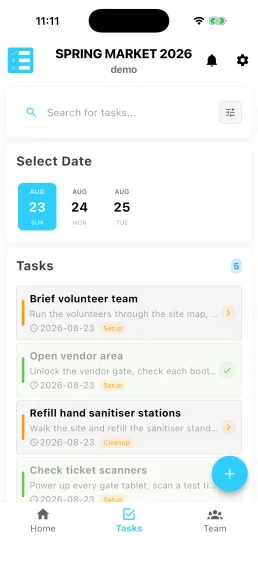
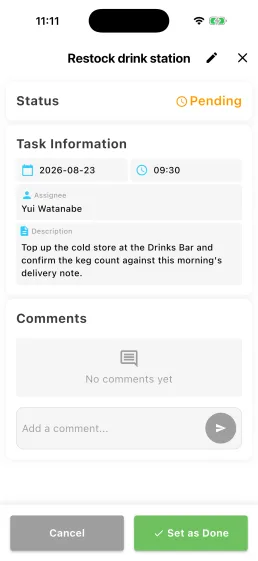
It is the only Stack meant for a phone as much as a tablet. Staff do not stand at a Task Stack station; they walk the site with it.
Three tabs and that is the whole app: today's status, tasks one day at a time, and team progress. A task marked complete on one phone is marked complete on all of them within seconds.
How a shift goes
- 1Home opens on today's status: how much is done, what is next, and what nobody has picked up.
- 2The Tasks tab is one day at a time, searchable by task, person or exhibitor and filterable by tag.
- 3Open a task, read it, tap Set as Done. It turns green on your screen straight away and reaches every other device within seconds.
- 4Leave a comment when something needs saying. The Team tab shows how far through everyone is.
Who did what, and when
Completing a task records who finished it and adds to its history, so the record remains after the event.
Who uses it
At the event
Walking the site, working the list, leaving notes.
Running the day
Writing the tasks, assigning them, and watching what has not been picked up.
What you need
- A phone or tablet with the app
- An event with tasks on it — they are created in Event Base
- Staff accounts with Task Stack access. Signing in with a badge is what makes the My Tasks filter work; an admin signing in with an email is not on the roster, so there is nothing for it to filter to
What you set up in Event Base
Tasks, tags, dates and times, who they are assigned to, which staff can open the app, and whether tasks can be linked to exhibitors.
Read the manual
What it does not do
Granting Task Stack grants everything. Admin and Editor both carry the full set — create, assign, edit, complete — and there is no read-only or execute-only tier below them.
The assignee is not a lock. Anyone who can open the app can complete or reopen anybody's task, so treat it as a statement of who should do something rather than who can.
The Team tab is built from the tasks, not the roster. Somebody with nothing assigned to them does not appear there at all.
Settings sits behind a plain cog rather than a hidden gesture, so anyone signed in can reach the language and event controls.
Questions we get asked
- Can we give someone a read-only view of the task list?
- Not today. The two roles Event Base offers for Task Stack — Admin and Editor — both carry the full set, so anyone who can open the app can create, reassign and edit tasks. Check this before you add people to it.
- Does it work on a phone?
- It is the one Stack designed for a phone as much as a tablet. Staff do not stand at a Task Stack station; they walk the site with it.
- How quickly does a completed task reach everyone else?
- Seconds. A task marked complete on one phone is marked complete on all of them, and the counts on the home screen update.
- Can tasks be tied to a particular exhibitor?
- Yes, where the event has that switched on: a task links to a Participant and the Tasks tab gains a filter for it.
- Is there anything to close off at the end of the day?
- No shift to end and no total to submit. Check Unassigned Tasks before you finish for the day — anything still there was never picked up.


Tell us what happens on your event day
We will work out which apps you need — and which you do not.