
Time Stack
Clock staff in and out
Staff clock-in at the entrance.
A tablet at the staff entrance showing two large panels — one to clock in, one to clock out. Somebody arriving taps the top one, holds their badge to the camera, and the tablet records the time and greets them by name.
Pushed to your tablets by your device management. Nothing for staff to install.
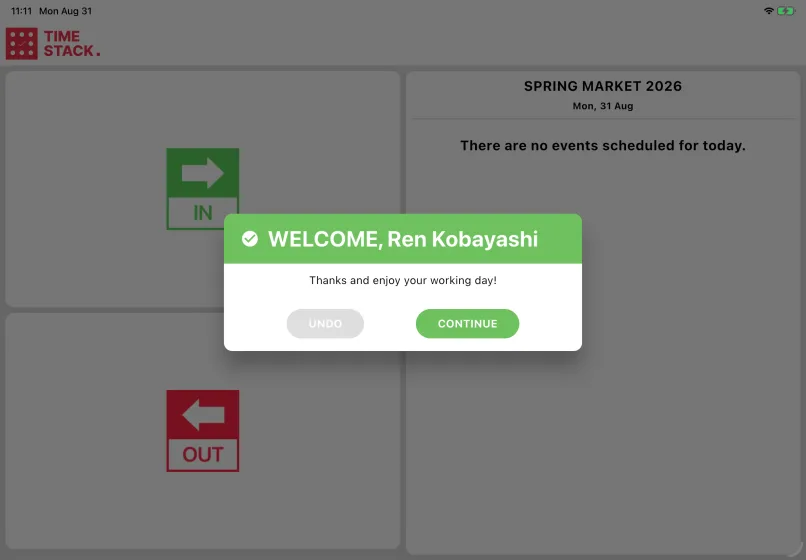
Beside the clock it shows the day's schedule, so staff signing in can see what is planned. Where the event asks for it, a photo is taken at the same moment — proof of presence for payroll rather than a check on the person.
From the supervisor view, you can see who is in, who never clocked in, how long each person has worked, and the entries themselves — correct one, add a missed shift at the time it actually ended, or clock out everyone still in at closing. The same screen prints staff badges.
How a shift goes
- 1Somebody arriving taps the top panel — the green one — and holds their badge up to the camera.
- 2The tablet reads it, records the time and greets them by name. There is nothing to type and no PIN: the badge is the credential.
- 3To leave, they tap the bottom panel and scan the same badge.
- 4Tapped the wrong panel? Undo sits beside Continue and deletes the entry that was just recorded. After Continue it becomes a supervisor's correction.
Everything it records is real
There is no test mode and no demo mode. These records are used for payroll, so test timecards would create risk. A clock action can be undone immediately and an entry deleted afterwards, but nothing here is a rehearsal.
Who uses it
Arriving for a shift
Tap, hold the badge up, and go.
Supervising the day
Watching who is in, correcting entries, printing badges, clocking out everyone still in at closing.
Setting it up
Binding the tablet to the event, mounting it where a badge can be held up comfortably, and connecting the label printer.
What you need
- A tablet with a camera at the staff entrance, mounted where somebody can hold a badge up to it comfortably
- Staff assigned to the event, each with a badge carrying their QR code — printed from the app or beforehand
- A staff account that can reach the event, to sign the tablet in
- A Brother label printer on the same network, only if you print badges from the tablet
What you set up in Event Base
Staff and their badges, shifts and the day schedule, badge layouts, whether the kiosk shows the schedule, and whether a photo is taken at clock time.
Read the manual
What it does not do
Corrections need an account with timecard permissions. Without them the screen still shows the day, but the bulk actions and the overflow menu are simply absent.
A bulk clock-out writes the time you press it, not the time somebody actually left. For a shift that ended two hours ago, add the entry by hand instead.
The apps take their timestamps from the device clock, so a tablet on the wrong timezone stamps the wrong times — and records already written keep the time they were written with.
The monitor goes thirty days back and no further forward than today. There is nothing to manage in the future.
Questions we get asked
- How do staff identify themselves at the clock?
- A badge QR code held up to the camera. No PIN and nothing to type — the badge is the credential, and the tablet greets them by name so they know it registered.
- What happens when somebody forgets to clock out?
- Their shift stays open and their hours keep growing, which shows on the supervisor's screen as somebody still on site. Fix it with a manual entry timed to when they actually left, or clock out everyone still in at closing.
- Is there a test mode for training?
- No, deliberately. Payroll reads these records, so test timecards would create risk. A clock action can be undone while the greeting is still up, and an entry deleted afterwards.
- Can we require a photo at clock-in?
- Yes, and you can make it optional or required. It is taken between the badge scan and the greeting, as proof of presence for payroll.
- Do we need a printer?
- Only if you print staff badges from the tablet, which takes a Brother label printer on the same network. The monitor works perfectly well without one.




Tell us what happens on your event day
We will work out which apps you need — and which you do not.